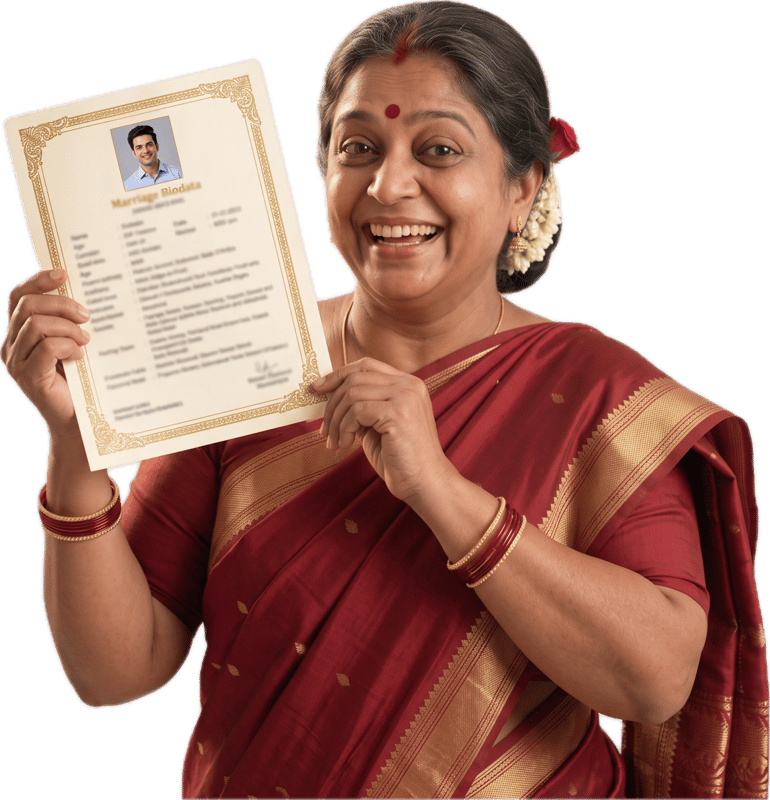
How to Make a Marriage Biodata Online, Step by Step
Updated 1 October 2026
Step 1: Gather your details
Collecting the facts first is half the job. Keep these near you, in a notes app or on a sheet of paper:
- Date, time and place of birth
- Height in centimetres, and weight if you want to include it
- Highest education, job title, company and work city
- Parents' names and occupations, siblings, and your family's native place
- Gotra, rashi and nakshatra, only if your family matches kundlis
- A phone number, and a contact person's name if a parent should be called first
- One recent, clear photo
Ask the elders about anything you do not know. Whatever is still missing can stay blank for now. This page is about making the document. For help with the wording, such as hobbies and partner preferences, read how to write a biodata for a marriage proposal. For what each section usually holds, see the marriage biodata format guide.
Step 2: Open the builder
Go to the biodata builder on the home page. There is nothing to sign up for and no account to make. Building and previewing are free, and so is the watermarked PDF. You pay only for the clean final PDF.
Your draft is saved in your browser, on your own device, so you can stop halfway and come back on the same phone or laptop.
Step 3: Pick a layout, colour and border
The first step of the builder is called Language & Template. Its choices are separate, and you can mix them freely. Layout, colour and border decide how the biodata looks.
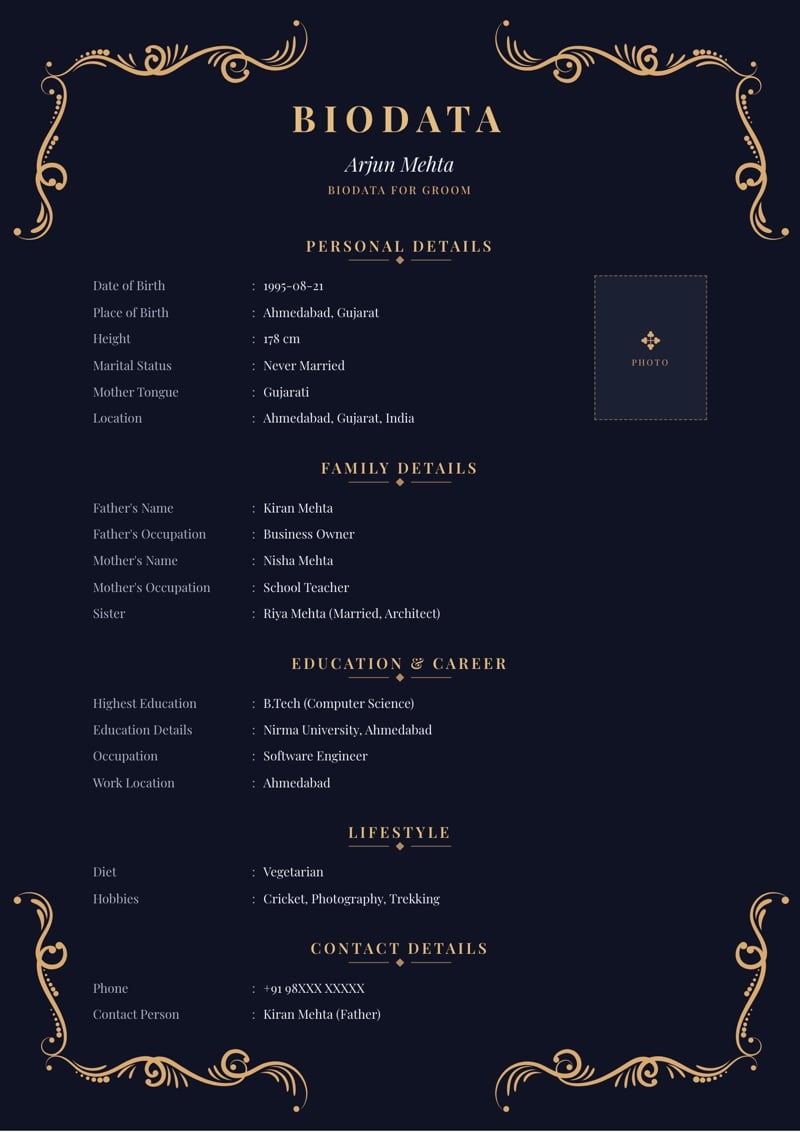
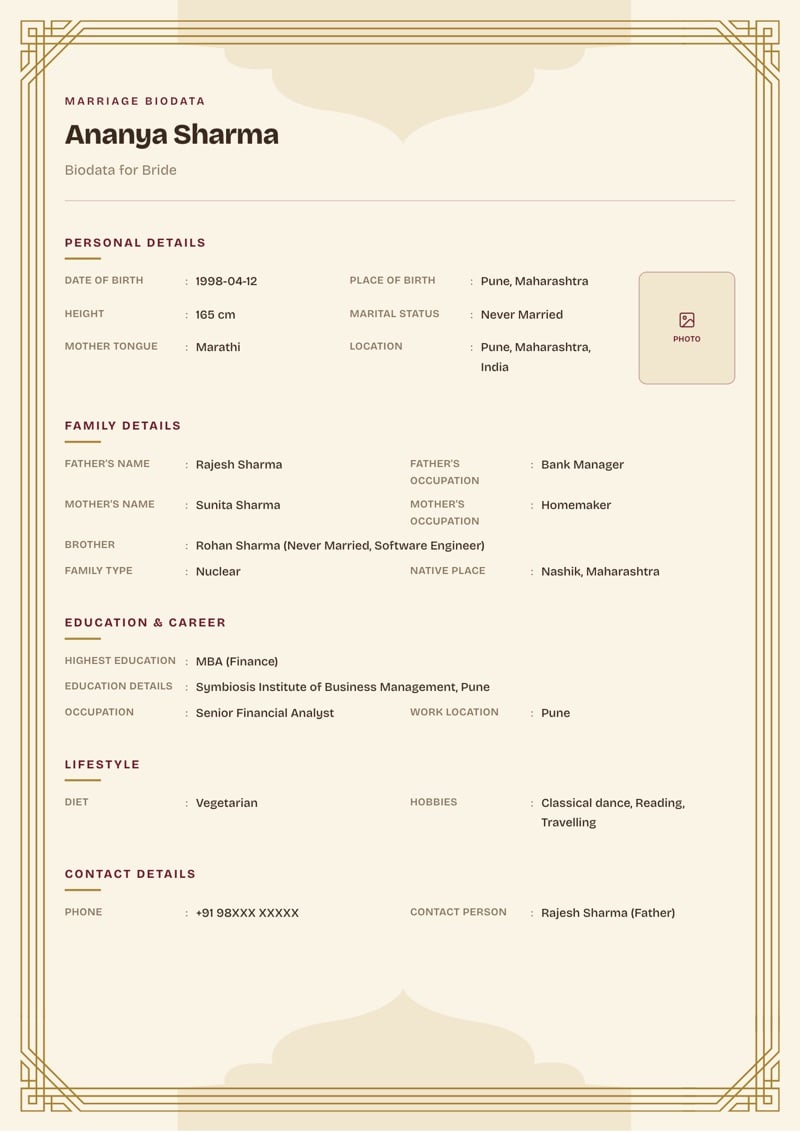
- Blossom
- A softer, more personal look.
- Modern Sanskar
- Fits more detail neatly, so it suits a biodata with a lot to say.
- Heritage
- A classic, formal look.
Each layout comes in several colours and borders. You can have Heritage in a bold colour, or Blossom with a different border. The preview updates as you choose, so try a few. To see them before you start, open the marriage biodata samples. If you plan to print it at home, white or cream uses the least ink.
Step 4: Fill in each step of the builder
After the design step come seven more, always in the same order. Personal Details, Education & Career and Contact Information need their required fields before you can move on. Family Details, Lifestyle, Astrology and Partner Preferences have a Skip button. Optional fields are labelled as optional. Under each step is a sample biodata with that section boxed in yellow. The details are made up: Ananya Sharma is not a real person.
Personal Details
The longest step. Start at the top and work down.
- Profile Photo
- Pick a recent, clear photo. The builder resizes it in your browser before adding it.
- Full Name, Gender
- Type your name the way you want it printed. Gender is a dropdown, and it decides whether the title reads Biodata for Groom or Biodata for Bride.
- Date of Birth
- Type the full date, and check the year before you move on.
- Time of Birth, Place of Birth
- Needed mainly if your family matches kundlis. Otherwise skip them.
- Height (cm), Weight (kg)
- Numbers only, in centimetres and kilograms. For example, 5 ft 6 in is about 168 cm.
- Complexion, Blood Group
- Two optional dropdowns. Leave either blank if you would rather not say.
- Marital Status
- A dropdown: Never Married, Divorced, Widowed or Awaiting Divorce.
- Religion, Caste, Sub Caste
- Start typing the religion and pick it from the list. Caste and Sub Caste are optional text fields.
- Gothra, Manglik
- Gothra is optional text. Manglik is a dropdown with Yes, No, Anshik and a don't-know option, so nobody has to guess.
- Mother Tongue
- Start typing and pick it from the list.
- Current City, Current State, Current Country
- Pick an Indian city and the state fills in for you, if it is still empty.
Not sure what to put under Gothra? Read what is my gotra.
Education & Career
- Highest Education, Education Details
- Highest Education is required, so write your top degree, for example B.Tech Computer Science. Use Education Details for other degrees and institutions.
- Occupation, Company Name, Designation
- Occupation is required. A real job title and company read better than a vague phrase.
- Annual Income
- Optional. Share it only if you and your family want to.
- Work Location
- Start typing a city.
Family Details
- Father's Name, Father's Occupation, Mother's Name, Mother's Occupation
- All optional, but most families expect to see them.
- Siblings
- Press + Add Sibling for each one, then enter a name, brother or sister, and marital status.
- Family Type, Family Values
- Family Type is Nuclear or Joint. Family Values is Traditional, Moderate or Liberal.
- Native Place
- Your family's hometown, which can be different from where you live now.
Lifestyle
- Diet
- A dropdown: Vegetarian, Non-Vegetarian, Eggetarian, Vegan or Jain.
- Smoking, Drinking
- Two optional dropdowns.
- Hobbies, Interests
- Each one is added as a tag, and a hobby can be up to 50 characters. Two or three real ones read better than a long list.
Astrology
This whole step is optional. It is mostly used by families that match kundlis. If yours does not, press Skip.
- Rashi, Nakshatra
- Rashi is a dropdown, and Nakshatra you start typing and pick from the list.
- Gan, Nadi, Charan
- Gan is Deva, Manushya or Rakshasa. Nadi is Adi, Madhya or Antya. Charan is 1 to 4, the pada. Copy all three from your kundli if you have one.
Not sure of your rashi? Try the rashi finder.
Contact Information
- Phone, Alternate Phone
- Phone is required. The alternate number is optional.
- Email, Address
- Both optional.
- Contact Person
- Add a parent's name here if you would like families to call them first.
Check the phone number twice. It is the one detail that has to be right.
Partner Preferences
Optional. Keep it short and honest.
- Age Range, Height Range
- Free text, for example 26 to 30.
- Education, Occupation, Location
- Write as much or as little as you like.
- Other Expectations
- A few honest lines. A long list of conditions can read as rigid.
Step 5: Choose the language of your labels
The section headings and field labels can print in English, Hindi, Marathi, Gujarati or Odia. That changes the labels and nothing else. What you type prints exactly as you typed it, so if you want your city or your job in Devanagari, type it in Devanagari.
The choice sits in the same first step as your layout, Language & Template. If you have moved past it, open that step again. The builder's own form stays in English, and only the biodata changes. See every label in Hindi, Marathi, Gujarati or Odia (with the labels in Odia script) .
Step 6: Check the live preview
The preview updates as you type. On a laptop it sits beside the form. On a phone, tap View Live Preview to open it.
Read the whole biodata once, top to bottom, the way the other family will. Check the spelling of every name, the dates and the phone number. Then ask someone at home to read it too, because a fresh pair of eyes catches the typo you have stopped seeing.
Try to keep it to one page, two at most. If it runs long, trim an optional field instead of squeezing everything in.
Step 7: Download the PDF
The download panel sits at the bottom of the last step, Partner Preferences. You reach it by working through, or skipping, the steps before it. Building and previewing are free, and so is the watermarked PDF, a draft to share with family. You pay only for the clean final PDF.
The PDF is A4 and print-ready. It opens on any phone, prints cleanly, and keeps its layout on every device, which is why it is the format to send.
Step 8: Share it on WhatsApp
Send the PDF itself, not a screenshot of it. In WhatsApp, tap the attach button, choose Document and pick the file. A screenshot blurs the small print and cannot be printed cleanly. Email works the same way: attach the PDF and send.
On some phones a Share PDF button appears right after the download, which sends the file straight to WhatsApp or email.
Frequently asked questions
Do I need to sign up to make a biodata?
No. There is no signup and no account. Building your biodata and previewing it are free, and so is the watermarked PDF, a draft to share with family for approval. You pay only for the clean final PDF. Your draft is saved in your own browser, on your own device.
Can I make a biodata on my phone?
Yes. The builder works in a phone browser. On a phone, a View Live Preview button opens the preview, and once the PDF is ready you can send it on WhatsApp or email like any other file.
Can I change the design after I have filled in my details?
Yes. The layout, colour and border are separate choices, so changing any of them only changes how your details look. Nothing you have typed is lost.
Which fields do I have to fill in?
Full name, gender, date of birth, marital status, religion, current city, current country, highest education, occupation and phone number. Every other field is optional, and Family Details, Lifestyle, Astrology and Partner Preferences can be skipped entirely.
Can the biodata be in Hindi?
The section headings and field labels can print in English, Hindi, Marathi, Gujarati or Odia. What you type prints exactly as you typed it, so if you want your city or your job in Hindi, type it in Hindi.
About MyMarriageBio
MyMarriageBio is a marriage biodata maker for the moment you're ready to take the first step: fill in your details, pick a design you love, and share a beautiful biodata with your family in minutes.
Create Biodata Now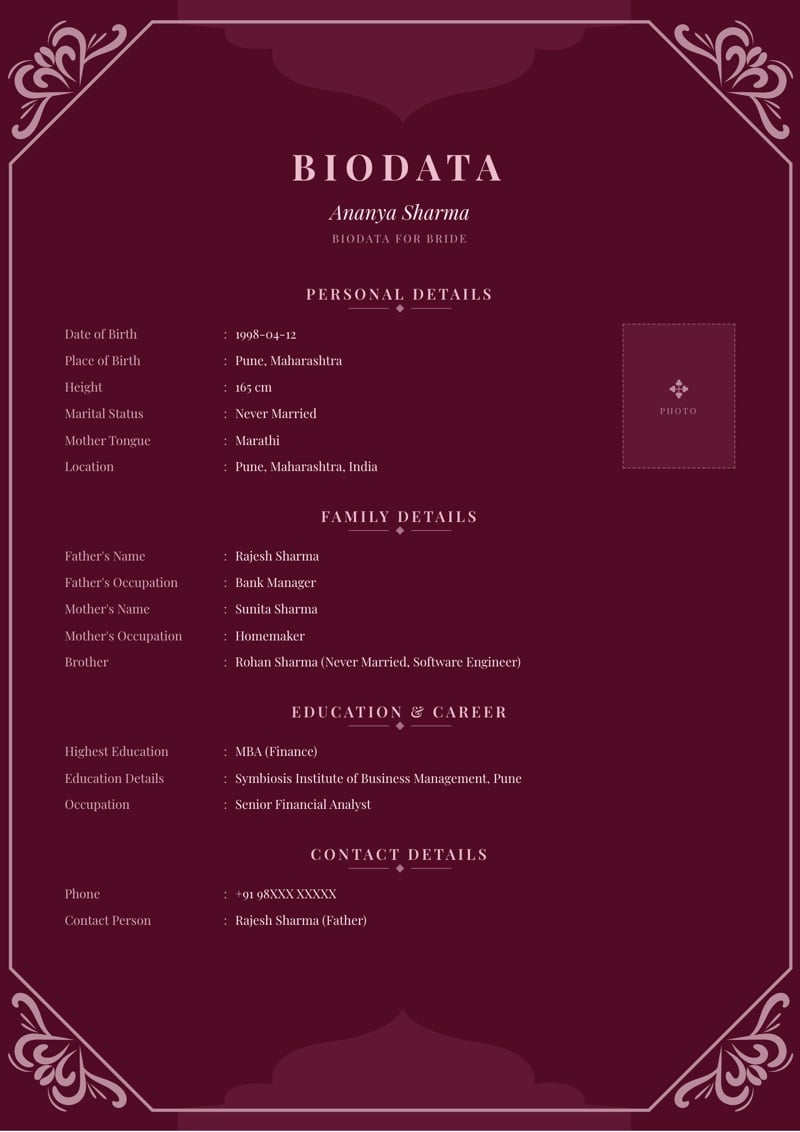
Read next
Marriage biodata format
The full field-by-field reference: what to include and why.
MyMarriageBio on Product Hunt: Launching 20 Nov 2026
MyMarriageBio launches on Product Hunt on 20 November. What the biodata maker does, why I built it, and how you can support the launch.
Format for a boy
What a groom's biodata conventionally emphasizes.